How to Create a Alerts in IoT Tracking Dashboard

How to Create a Alerts in IoT Tracking Dashboard

2. Click on "Alerts"

3. Click on "Create Alert" button

4. Assign Name to Alert

5. Select Single or Mutiple Assets as required!

6. Click the "Show All Supported Events" field.

7. Click on Triggered Events
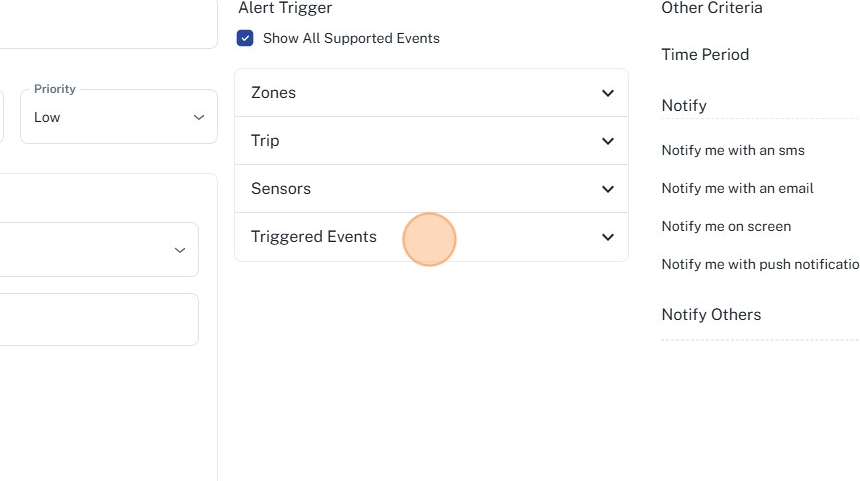
8. Select your event, in my case we are selecting "Overspeed"

9. For our example we are creating alert above 20% of the speed limit

10. Select Different Notifications methods
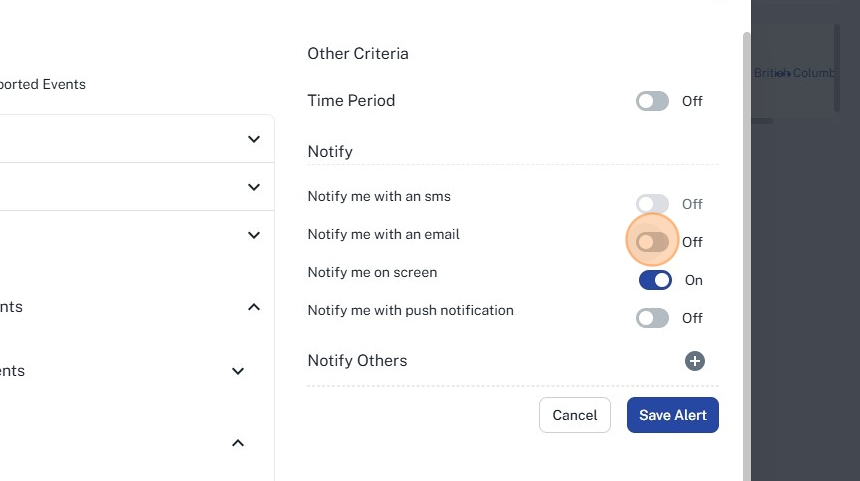
11. If you want to choose external users, select Notify Others

12. You can choose Emails, Push Notifications, ON-Screen Alerts

13. After selecting the notification method, click on "Save Alert" to apply your settings.


    • Related Articles

    • Add a User in IoTKinect Tracking System

      Guide to Add a User in IoTKinect Tracking System 1. Navigate to https://track.iotkinect.io/ 2. Login To Your Administrator Account 3. You will be redirected to you Dashboard 4. Click on "Admin" Button 5. Click on "Users" Button 6. Click on "Add User" ...
    • User Roles & Permissions

      Users Roles and Permissions allow for setting specific privileges that define what users can view and do within the app. Default Roles: By default, the app provides three roles, and additional custom roles can be created based on specific ...
    • Alert Reports

      The Alerts page allows you to create and generate reports. At the top left, you’ll find two sub-tabs: one for standard generic reports (such as trip and violation reports) and another for scheduled and custom reports. In Generic Reports, select your ...
    • Using the Same Email Address for Different Logins

      If you receive the error message "The user already exists" while trying to add a user account, it means the email address is already associated with an existing account on the platform (e.g., another reseller, client, or external contact). Solution: ...
    • Device Setup Guide

      To successfully point your device to our servers, follow these steps: 1. Server Address Tracker Destination: Point your trackers to the following server address: track.iotkinect.com 2. Port Port Information: Determine the correct port for your ...